
Class scheduling software that flags room and teacher conflicts
Set a session's weekly time slots and its classes are created for the whole term, with room and teacher overlaps flagged as soon as you save.
Pro plan free for 30 days · no credit card · no commitment
Classes created for the whole session
A session is a dated run of a course from your catalog: teacher, room, start and end dates, capacity and weekly time slots. Say Tuesday and Thursday from 6 to 8 pm: each slot creates a class on every matching day between the start and end of the session. One-off classes cover an irregular timetable. Editing the time slots only replaces upcoming classes: classes that are past, already marked for attendance or moved by hand stay as they are.
A schedule by room, by teacher or by course
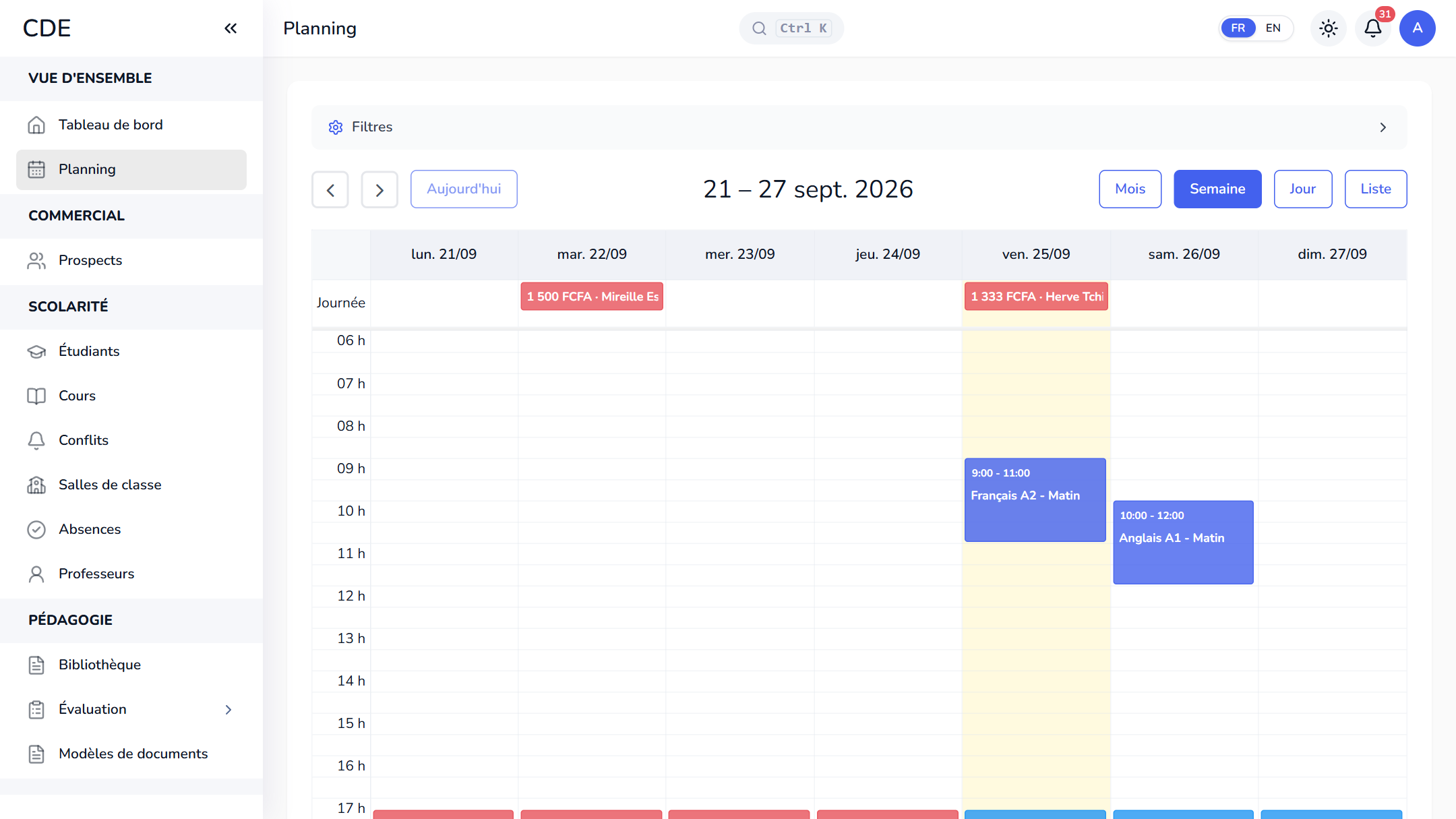
The schedule puts classes on one grid and, depending on each person's access, lead follow-ups and payment due dates too. View it by month, week, day or as a list (the default on a phone). Filter by teacher, course, room or site, and color classes by type, teacher, course or room. By default, a teacher only sees their own classes.
Drag and drop, cancel, create from the calendar
- Drag a class to another day or time, and stretch it to change its length.
- Cancel a class for a public holiday or an unavailable teacher: it leaves the schedule and the teacher's payroll.
- Click a day to create a session, or to add a class to an existing one, without leaving the calendar.
Room and teacher conflicts, flagged up front
When two classes overlap in the same room or with the same teacher, Palatryx opens a conflict when a session is saved, or when a class is moved or canceled. It shows on the session page, in the team's to-do list and on the Conflicts page, where the two classes appear side by side.
Resolve it by changing the room, assigning another teacher, or moving or canceling the class. An overlap you want, such as a room shared by two groups, can be ignored with a note.
Rooms and multiple sites
Set up your rooms with their capacity, location and equipment. With the Multi-site feature, rooms and sessions belong to a site: the schedule can be filtered by site and reports are broken down by site, under one management.
Frequently asked questions
Which software should I use to schedule classes at a training center?
A tool that generates classes from time slots, shows rooms and teachers on one calendar and flags overlaps. Palatryx does this in the browser, on a computer or a phone, with a free trial and no credit card.
How do I avoid double-booking a room or a teacher?
Whenever a class is saved or moved, Palatryx compares the times and opens a conflict for a room or teacher booked twice. The conflict is flagged, then you choose: change the room, teacher or time, cancel the class, or ignore it with a note.
Can teachers check their schedule on a phone?
Yes. The schedule opens as a list on a phone and each teacher sees their own classes by default. Their home page also lists today's classes, with a button to take attendance.
See also
Open your center in minutes.
Enroll your first students the same day. 30 days free on the Pro plan, no credit card required.